Local database is required for developers because as mobile users, developers can store copies of the Siebel database (including the Siebel repository) on their local machines. They can check out objects from the server repository, configure and test on their local machines, and then check objects back into the server.
Create an Employee in the Administration – Users -> Employees screen. Assign the appropriate position and responsibility.

Navigate to Administration – Siebel Remote -> Mobile Clients and add a new mobile client for the User

Create user at the oracle database and assign SSE_ROLE and connect to the user.
For ex. in oracle database using sql plus we have to write following queries
SQL>Create user DIPTESH identified by DIPTESH;
SQL>Grant connect to DIPTESH;
SQL>Grant SSE_ROLE to DIPTESH;

- From the application-level menu, choose Navigate > Site Map > Administration – Server Management > Jobs.
- In the Jobs list, click New.
- In the Component/Job field, select Generate New Database Extract from the picklist.
- Click on the Submit Job button.
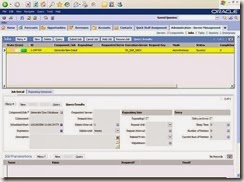
- In the Administration – Server Management > Jobs. Create a new job of type “Database Extract”
- Provide the following parameters
· Client Name: Mobile Client Name
· Encrypt client Db password: false
· Client Database encryption method : none
- Submit the job.
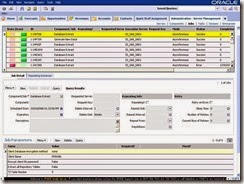
- Database Extract creates a template for the developer’s local database that is populated only with business data, not repository data.
- A folder will be created in the SERVER_HOME/docking with the name of the mobile client. This in turn will contain two more folders inbox and outbox.
- Open the Siebel Tools and connecting to the local database by providing credentials of the mobile client.
- A message appears saying that the local database is not found.
- Click Yes to start the initialization process.
- The initialization process creates the sse_data.dbf file (local database) in the TOOLS_HOME\local directory of Siebel Tools installation, for example c:\siebel\tools\local.
Navigate to Tools -> Check Out and Click on the Get button.
We got the following error which h doing Get


Solution:
- The above error was seen because table “S_DOCK_TABLE” had a column NOTIFY in the server database but the same was not present in the local dbf.
- Login to Toad as Siebel user and drop the “NOTIFY” column from the S_DOCK_TABLE
- Start the GET process again
The Transaction Merger server component is failing with following error
“Unable to find column in Siebel dictionary., Additional Message: DB_LAST_UPD”
Find the detail Log file below.


Solution:
A service request was raised with oracle for the same. Oracle suggested to send the problematic dx file to them. The dx file was decoded and send back which worked fine.
I was found that the DB_LAST_UPD and DB_LAST_UPD_SRC columns are missing the following tables.
S_OPTY_XM_X
S_OPTY1_X
S_OPTY2_X
The following View takes care of Data to be entered in S_OPTY1_X table.
Manually created DB_LAST_UPD and DB_LAST_UPD_SRC in S_OPTY1_X and S_OPTY2_X tables in the database.
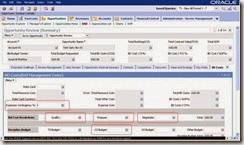
Applet: CG OSD Opportunity Cost of Sale Form Applet
BC: CG OSD Cost of Sale
View: CG OSD Opportunity Cost of Sale Detail View
View Name: BD Costs
Screen: Opportunities Screen
Screen: CG WSP Opportunites Screen
Following Applet Fields:
Propose
Qualify
CS Budget
Expenses Contingency %
Negotiate
To resolve the issue you should add columns to the custom extension tables:
-After development upgrade to Siebel 8.0, add the two columns to all your custom tables, where they are missing, using as a sample any of the standard Siebel tables.
-Recreate schema.ddl and custrep.dat as per Upgrade Guide->Performing the Siebel Repository Merge -> Regenerating the Siebel Repository Definition Files
-Move these new files to production test environment
13.12
Problem:
Mobile Web Client applying the Upgrade Kit fails when database schema are merged
WORKAROUND
Step1: Manually modify ddl.ctl , PRE-UPGRADE or PRE-DB INSTALL. For upgrade, this step should be part of
development upgrade.
Following are the steps to make changes to ddl.ctl file:
1. For Windows explorer, go to ddl.ctl file. Ddl.ctl file is located at <dbsrvr>\<ORACLE> folder.
2. Open ddl.ctl using Notepad editor.
3. Search for Name = S_AUDIT_ITEM.
4. Find ITEM_IDEN_NUM column, it should be the first column.
5. Remove AUTOINCREMENT word. Replace it with DEFAULT 0.
6. After making changes, column definition should look like:
Column 1 = ITEM_IDEN_NUM NUMERIC(15,0) NOTNULL DEFAULT 0
7. Save and close the file.
8. Continue with upgrade or fresh database install.
Step2: Update Siebel Repository to set ITEM_IDEN_NUM column SequenceObject property to Null.
Apply the following SQL statement POST UPGRADE or POST DB-INSTALL for the production database. SQL needs
to be applied before gennewdb / dbxtract process.
update S_COLUMN
set SEQ_NAME = NULL
where TBL_ID = (select ROW_ID
from S_TABLE
where NAME = 'S_AUDIT_ITEM'
and REPOSITORY_ID = (select ROW_ID
from S_REPOSITORY
where NAME = 'Siebel Repository'))
and REPOSITORY_ID = (select ROW_ID
from S_REPOSITORY
where NAME = 'Siebel Repository'
)
and NAME = 'ITEM_IDEN_NUM';
Open Siebel Tools and verify that S_AUDIT_ITEM table, ITEM_IDEN_NUM column, SequenceObject property has
NULL value.
Step3: Re-compile SRF


